Dual App - Web Scanner App
- 4.6
- Rating
- 10.00M
- Installs
- Free
- Price

 Analysis by App-foxy
I installed Dual App - Web Scanner App to see whether it really helps with the awkward parts of managing more than one account and saving temporary content. It is a free communication app from 360 Tool, built around web scanning, dual-account access, and a status-saving tool rather than ordinary messaging. That focus makes it interesting for people who regularly switch between accounts, but it also means the app is more specialized than its short “Dual App” label suggests.
My first impression was that this is best understood as a practical companion rather than a replacement for a messaging service. You still need the relevant communication account and its normal web or linked-device process. The app’s job is to make that handoff easier, keep a second account available, and help you deal with status content you want to save for later. In everyday use, that can remove repeated sign-outs and reduce the temptation to use several unrelated utilities.
From a second account problem to a usable daily workflow
I look at the move from juggling accounts as a one-off nuisance to building a repeatable routine. The useful question is not simply whether a second account can be opened, but whether the handoffs fit naturally into a busy day without making me less careful about which identity I’m using. That leads into what the app’s pace feels like during ordinary and heavier use.
You May Also Like

 Blood Strike: 2.5 Anniversary
Blood Strike’s Loadouts Turn Every Drop Into a Tactical Gamble
A close look at Blood Strike’s custom loadouts: how fast access to signature weapons reshapes its battle royale rhythm, rewards preparation, and narrows the gap between fights.

 Pandora - Music & Podcasts
Pandora’s Music Is Easy to Start, but Harder to Recover
Pandora’s strength is its low-effort path from a seed to a station. Its weak spot is how much confidence it asks you to place in connection, setup, and quiet recovery.

 8 Ball Pool
 Is Built on Rivalries, Rematches, and Routine
A close look at the rivalries, rematches, shared routines, and unanswered safety questions that turn a quick pool match into a persistent mobile community.

 Samsung Music
’s Quiet Strength Is Playing What You Already Own
Its reach comes less from spectacle than from dependable access to a personal library. That simplicity is both the app’s strongest retention engine and its ceiling.

 AccuWeather: Weather Radar
AccuWeather Review: A Quick, Clear Forecast for Everyday Decisions
For everyday plans, the best forecast is the one you can understand quickly. AccuWeather makes rain timing, radar, and local conditions easy to act on, with a few trade-offs.

 Hill Climb Racing
Why Hill Climb Racing Still Turns Crashes Into One More Run
A tiny car, a bumpy hill and one more upgrade: Hill Climb Racing keeps resurfacing because its simple chaos makes every near-miss feel personal.
More From Our News Desk



Starting with the situation that makes the app useful
The clearest use case is a phone shared between personal and work communication. Imagine finishing a family conversation and then needing to check a small business account. With the usual approach, I might open settings, change accounts, wait for synchronization, and repeat the process later. That is manageable once, but irritating when the switch happens throughout the day.
Dual App approaches that problem by giving the second account its own place. The benefit is not that it creates a new communication service; the benefit is that it reduces the number of interruptions between two existing identities. For someone who receives customer messages, manages a volunteer group, or separates private and professional conversations, that distinction matters.
The app also targets a second starting condition: seeing a status update that I want to keep. Normally, I would need to ask the sender to share it directly, take a screenshot, or search for another utility. A status saver can be convenient when the content is something I have permission to retain, such as a family announcement, an event graphic, or a work image needed for reference.
I would not install it simply because I occasionally use two accounts. If your phone already handles account switching comfortably, adding another layer may not improve your routine. The strongest reason to try it is repeated friction: frequent account changes combined with occasional status-saving needs.
What the first setup feels like
Because this is a communication utility, the important setup decision is not cosmetic. It is deciding which account will remain in the normal app and which one will be handled through the dual-app route. I prefer keeping my most important account in the official application and using Dual App for the secondary account. That makes the fallback obvious if the companion app needs attention.
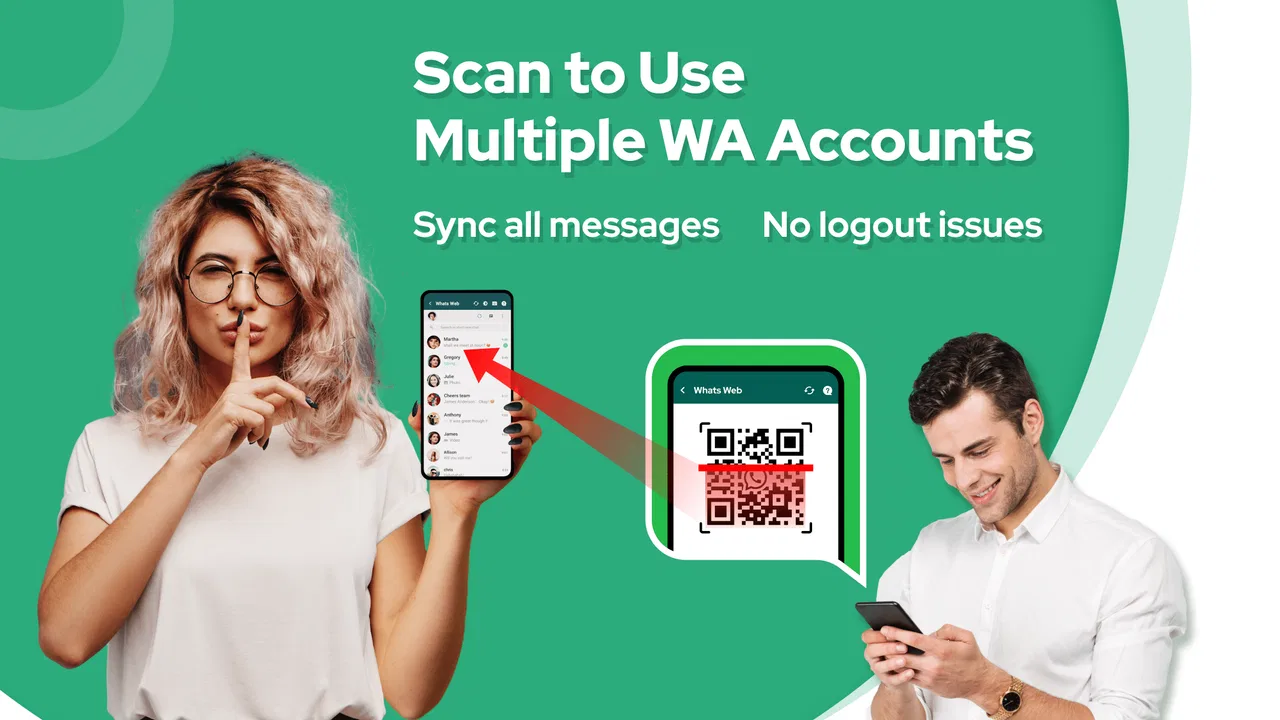
The web-scanning part follows the familiar pattern used by linked web sessions: open the scanner inside the app, then complete the connection from the account you want to use. The handoff is the key moment. I would do it on a trusted device and avoid scanning codes displayed on an unfamiliar screen. Convenience is useful, but account access should never be treated casually just because the process is quick.
One practical tip is to complete the initial connection while both devices are nearby and stable. Trying to pair an account while moving between networks or rushing out the door creates unnecessary confusion. I also recommend checking which account is active before sending anything. A dual-account tool reduces switching mistakes, but it cannot decide whether a message belongs to your personal or work identity.
Moving through the main screen without losing the thread
Once the account connection is ready, the workflow becomes a sequence of small handoffs. I move from the scanner to the linked account, from there to the conversation or status area, and then back to the app when I need to save something. This sounds simple, but the quality of the experience depends on how clearly each stage returns me to the next one.
The most useful habit is to treat the app as a launch point, not as a place where every communication task happens. I would not expect to compose a long message, organize a full archive, or replace the official account interface. Instead, I use it when I need an additional access route and then return to the normal communication flow.
That distinction also answers a common concern: whether the app is suitable for a primary account. It can be useful, but I would be more comfortable using the official application as the main home for sensitive conversations and relying on this tool for the secondary route. The arrangement keeps the roles clear and makes troubleshooting less disruptive.
Saving status content with a little more care
The status-saving feature is convenient because it turns a temporary item into something I can revisit. A sensible workflow is to view the status normally, decide whether I genuinely need it, save it, and then move the resulting file into a clearly named folder or share it with the intended person. Without that last step, saved images and videos can quickly become difficult to identify.
There is also a social boundary here. A status saver may make retention technically easy, but it does not automatically make every use respectful. I would save personal content only when the context allows it, and I would avoid redistributing someone else’s image simply because the tool made a copy possible. This is one of those features where good judgment matters as much as the button itself.
A less obvious advantage is reducing repeated requests. If a group posts an event poster and I need it later for directions or printing, saving it once is more practical than asking the sender to resend it. The trade-off is that I become responsible for managing those saved files. The app helps with capture; it does not replace a tidy storage routine.
Where the handoffs help—and where they add friction
The handoff between account access and ordinary communication is the app’s central strength. I can keep one identity available without constantly disturbing the other. For a small business owner answering messages during a commute, that can make the difference between checking a request promptly and postponing it until the evening.
At the same time, every handoff introduces a point where I need to verify context. Am I looking at the personal account or the secondary one? Did the scan connect to the intended profile? Am I saving a status for a legitimate reason, or merely because it is available? These checks take only a moment, but they are part of using the tool responsibly.
I also would not treat the web-scanning feature as a guarantee of uninterrupted access. Linked sessions can depend on the account service, the network, and the state of the original device. If the connection needs to be refreshed, the app cannot remove that underlying dependency. Its value is in simplifying the route, not in bypassing the rules of the communication platform.
A realistic everyday example
My preferred scenario is a person who runs a small home business while using the same phone for family conversations. In the morning, they check a customer question through the secondary account, confirm the order details, and return to the personal account. Later, a customer posts a delivery image as a status update. If keeping that image is appropriate, the user saves it for the order record and then moves it into a business folder.
The outcome is a cleaner routine: fewer account changes, less searching for a separate status utility, and a clearer separation between private and work communication. The important part is the sequence, not any single feature. The app is useful when it shortens a repeated workflow from several disconnected actions to one familiar path.
Another scenario is a volunteer organizer who monitors a group account while keeping a personal account active. They can scan into the secondary space, review updates, save an event notice for later reference, and hand the information to another organizer. Here the saved status becomes an input for a later task, while the dual-account function handles the access problem at the start.
What happens after the content is saved
The result is strongest when I decide in advance what the saved item is for. If it is a reminder, I move it into a folder with the event name. If it is needed by another person, I share it through the normal communication channel rather than leaving it buried in a downloads area. This small handoff turns a temporary status into something useful instead of digital clutter.
For account work, the result is measured less by a dramatic new capability and more by reduced interruption. I can reach the second identity without making my primary account feel disposable. That is a modest benefit, but it is exactly the sort of benefit that becomes noticeable after several days of repeated switching.
The app’s scale suggests that this workflow resonates with many users: it has passed ten million installs and holds a 4.6 average from roughly 214 thousand ratings. Those figures do not guarantee that it will suit every phone or account arrangement, but they do indicate that the concept is familiar and widely used.
Version, cost, and what to expect from the free route
Dual App is free to install, and the current release is version 1.6.3. The app is rated for Everyone and works on devices running Android 8.0 or later. That makes it accessible to many older phones, although the practical experience can still depend on the device’s memory, battery management, and the communication service being linked.
There are in-app purchases ranging from $1.99 to $59.99 per item. I would begin with the free experience and only consider paying if a feature I actually use is restricted in a way that affects my routine. A dual-account utility should earn its place through saved time; paying before testing that benefit would be backwards.
The developer, 360 Tool, has kept the concept focused enough that I can understand the intended workflow quickly. Still, anyone who dislikes optional purchase prompts or prefers a completely minimal utility should pay attention during setup and use. The free label makes the initial trial easy, but it does not mean every part of the app necessarily follows the same no-cost path.
Where the workflow breaks down
The first weak point is dependence on a linked web session. If the account service signs out, the scan has to be repeated, and that can be frustrating when I need immediate access. This is not a failure unique to Dual App, but it limits how confidently I would rely on it for time-critical communication.
The second issue is account confusion. A dual interface can make two identities feel close together, especially when notifications or profile images look similar. I would use distinct profile names where possible and pause before sending anything sensitive. People who regularly handle confidential customer conversations may prefer a device or official multi-account arrangement with clearer separation.
Status saving can also create storage and organization problems. A few saved items are helpful; dozens of unlabeled files are not. If you rarely revisit status content, the feature may add more maintenance than value. In that case, asking the sender to share an important file directly is cleaner and gives you better context.
Privacy-minded users should think carefully before granting any communication utility a role in their account workflow. I would review every permission request, avoid connecting an account I cannot afford to disrupt, and remove unused access when I stop using the app. The convenience is real, but account separation should never replace account caution.
How it compares with the usual alternatives
The official communication app remains the better choice for a single-account user who wants the most direct support and the fewest moving parts. It is also the safer default for people who do not need a second identity. In that situation, Dual App may feel like an unnecessary intermediary.
Built-in phone cloning or app-duplication tools can be a stronger alternative when a device offers them. They may provide more complete separation between two copies of an app, while Dual App is more specifically centered on scanning, linked access, and status saving. The built-in route is worth trying first if your phone already supports it and you want a second full app environment.
Dedicated status-saving utilities may offer a simpler experience for someone who only wants to retain temporary media. Choosing one of those instead can make sense if dual accounts are irrelevant. Conversely, a general file manager is better for organizing saved material after capture, but it will not solve the account-access problem that led me to Dual App in the first place.
My recommendation is therefore conditional. I would suggest this app to a person who repeatedly switches between two communication identities and occasionally needs a practical way to retain status content. I would skip it for a single-account user, for someone who wants a full independent clone with strong separation, or for anyone uncomfortable with linked-account workflows.
My final view after following the complete flow
What I like most is the way Dual App connects several small needs into one route: scan into a secondary account, handle the conversation, save a useful status when appropriate, and pass the result into the next task. None of those steps is revolutionary on its own, but together they address a recognizable everyday problem.
What I like least is that the route still depends on careful handoffs. The app cannot prevent sign-outs, eliminate account mix-ups, or decide whether saved content should be kept. Those responsibilities remain with me, and users expecting a completely automatic experience may be disappointed.
After using it as a communication companion, I see Dual App - Web Scanner App as a focused convenience tool rather than an essential replacement for official account software. Its free entry point makes testing straightforward, its age rating is broad, and its feature combination is more useful than the brief store label suggests. If your day genuinely involves two accounts and occasional status archiving, it can make that routine calmer. If not, the extra layer is probably not worth adding.
FAQs for Dual App - Web Scanner App
01What is Dual App - Web Scanner App used for?
Dual App - Web Scanner App is designed to let you access a second session of a supported messaging service through a web-scanning or linked-device function. After opening the app, you typically scan a QR code shown on the screen with the primary account’s official application. This can be useful for managing personal and work accounts, viewing messages on another device, or keeping a separate session available.
02How do I connect an account with Dual App - Web Scanner App?
To connect an account, open Dual App - Web Scanner App and wait for the linking QR code to appear. On the main messaging app, open the linked-devices or web-access section, choose the option to add a device, and scan the displayed code. Keep both devices connected to the internet during setup. The exact menu names can vary according to the messaging service and its current version.
03Is Dual App - Web Scanner App safe to use?
The app’s safety depends largely on how it handles the linked session, permissions, and any information displayed through the web interface. Before using it, review its privacy policy, requested permissions, developer information, and user feedback on the official store. Never scan QR codes from unknown sources, and avoid entering passwords, verification codes, or banking information into unofficial screens.
04Can I use two accounts on the same phone with this app?
Dual App - Web Scanner App may help you access a second account when the supported messaging platform allows linked sessions, but it does not necessarily create a fully independent account environment like a system-level app clone. Whether two accounts work simultaneously depends on the service, device, Android or iOS version, and the app’s current implementation. Check compatibility before downloading.
05What should I do if the QR code does not scan or the connection stops working?
If scanning fails, update the official messaging app and Dual App - Web Scanner App, then reload the QR code and try again with better lighting and a clean camera lens. Confirm that both devices have a stable internet connection and that the code has not expired. If the session disconnects repeatedly, remove unused linked devices, restart the apps, and review the service’s account-security settings.
Pros
- Clones supported apps for managing separate personal and work accounts.
- Web scanner makes it easy to access messaging accounts on another device.
- Simple interface with a quick setup process for most users.
- Useful for keeping notifications and chats from different accounts separate.
- Can reduce the need to carry multiple phones for account management.
Cons
- App compatibility may vary depending on your phone model and Android version.
- Cloned apps can consume extra storage
- memory
- and battery power.
- Some services may block or restrict access from cloned environments.
- Web sessions can expose private chats if the linked device is not secured.
- Free features may include ads or require in-app purchases for full access.

Dual App - Web Scanner App
Gallery